Conditions and actions

Connect events
in one show

When a visitor presses a button, turn on a light. After a moment, start a mechanism and sound. Arrange dependencies so the layout performs the next steps in the order you choose.

05 / 08Conditions, sequences and schedules
Event sequenceModel scene

The signal activates a condition, followed by light, motion and sound.

A condition, an action and the next step in the scene

What you can do

Decide what
happens next

Individual devices become a show when you define their order and how they depend on each other.

Conditions and actions

Build “if X, do Y” rules based on device signals and states.

Sequences with delays

Set the actions and the time between them. Let one element finish before the next starts.

Device groups

Start several elements with one action, such as lighting an entire street.

Schedule

Schedule selected actions to suit the rhythm of your exhibition.

Panel buttons

Assign a prepared sequence to a button and give the operator clear controls.

State-based dependencies

Make the next action depend on a signal from the layout. Test the rules with your hardware before the show.

Ideas for your project

How will you use it
on your layout?

01

Museum presentation

A button starts lighting in the first zone, followed by movement and commentary. Each action has its place in the scene.

02

Day turns into night

Street lights and windows come on one after another, while the audio ambience changes to evening city sounds.

03

A mechanism in sequence

An open gate signals the next step. Movement and lighting follow one sequence.

Devices and connections

From an event
to a show

An event reaches a rule. When its condition is met, the app performs the assigned actions and the controllers pass them to the devices.

Signal flowAutomation / 04 stages
  1. 01Trigger

    Event

    Button, time or state

  2. 02Logic

    Condition

    Rule in the app

  3. 03Order

    Sequence

    Actions and delays

  4. 04On the layout

    Layout

    Light, movement and sound

What to prepare

Materials and wiring

Panel and inputs

Buttons, sensors and device states provide signals for the rules.

Controllers

They connect the app to the devices that perform each action.

Layout elements

Choose lights, drives and audio equipment for the scene you want to run.

Connections and documentation

Prepare your setup

Start each device separately first. Then combine the tested actions into a sequence.

Additions for your project

Expand your layout

Hardware, effects and files from the catalogue. Match them to the devices and scenes you are working on.
Coming soon
Hardware and controllers

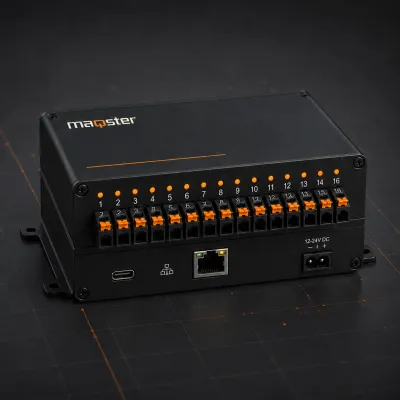
Input and output controller

16 configurable I/O channels for layout automation.

View product Coming soon
For museums and exhibitions

One scenario for the complete presentation

Example scenario

A mine model could begin with an operator’s button: the shaft cross-section lights up, a prepared mechanism starts and a recording explains its operation. Afterwards, the station returns to its agreed state. This sequence is described step by step rather than assuming that every device should switch on at the same moment.

What to prepare

Prepare a scenario listing action order, approximate timings and the conditions for moving to the next step. It needs tested actuators, compatible controllers and input signals if the show relies on state confirmation. Define staff operation too: starting, interrupting, restarting and preparing the station after power is switched on.

Scope and limits

A time delay does not confirm that a mechanism has reached its position. If the next action depends on that event, the design needs appropriate feedback and a rule. Presentation automation does not replace drive protection or operating procedures. Schedules need to match how the exhibition is used and be tested in rehearsal.

Questions before implementation

Can the show run in a loop?

A repeating scenario can be planned when the equipment is suitable. The pause between cycles, the starting state of each cycle and how staff exit the loop all need to be defined.

Can automation be added to an existing exhibition?

First, the existing devices and available interfaces are documented. The scope depends on what can be controlled and which states can be read. Wiring diagrams, equipment documentation and a trial of the most important sequence are useful.

Explore control for museums and exhibitions or discuss your exhibition implementation. An implementation can be scoped and quoted now. The standalone Maqster app has not yet launched.

Enlarged view. On a small screen, scroll the diagram horizontally.

FREE · NEWSLETTER AND LAUNCH

We will let you know when
the app is ready

Sign up for the newsletter. After launch, we will email you a link to an account where you can download the app.

LET'S TALK ABOUT PRO

Your idea
PRO possibilities

Tell us about your model. We will help you choose the right application features and work out where to start.

  • Scenes and device control
  • Automation and integrations
  • A conversation about your project
maqsterLight. Motion. Sound.

We will reply to the email address you provide. Privacy policy.

Contact

Discuss control for your model

Tell us what you would like to do with your model layout. After a consultation, we will prepare a complete system tailored to your project.

  • Device and scene plan
  • Local control and configuration backups
  • Controllers, protocols and integrations