
Interactive layout

A layout that
responds

A button press, an approaching visitor or a signal from the layout can trigger the next action. Link inputs to lighting, mechanisms and scenes.

04 / 08Buttons, sensors and responses
From signal to responseModel scene

A button or sensor sends a signal to the controller.

One signal can start an entire show

What you can do

From signal
to action

Choose the event your layout should respond to. Then assign the appropriate action.

Buttons and switches

Trigger actions from a physical panel. Buttons can guide visitors through an exhibition.

Reed switches

Use an input state change to detect the position or passage of a layout component.

Movement and distance

Respond to presence and proximity using a sensor and interface suited to the installation.

Thresholds and delays

Define when a reading should trigger a response and how long to wait before the next action.

Input states

Check readings during setup and diagnostics. This makes it easier to associate a sensor with its location on the layout.

Signal-triggered scenes

In PRO, link inputs to conditions and actions. A signal can start a sequence of devices.

Ideas for your project

How will you use it
on your layout?

01

A button beside the display case

A visitor presses a button. The selected part of the layout lights up and a short presentation begins.

02

Come closer to see

A presence sensor starts a scene in the exhibition area. A delay helps set the rhythm of successive shows.

03

A signal from the mechanism

Position feedback can be a condition for the next action, such as switching on a light after an element opens.

Devices and connections

From signal
to response

A button or sensor sends a signal to the controller input. The app uses the input state to trigger the assigned action.

Signal flowSensors / 04 stages
  1. 01Trigger

    Button or sensor

    Signal from the layout

  2. 02Reading

    Controller input

    State reading

  3. 03Action

    Rule in the app

    Condition and action

  4. 04On the layout

    Device

    Layout response

What to prepare

Materials and wiring

Buttons and sensors

Match the signal type to the controller input: a contact, a digital state or another supported reading.

Controller and inputs

The architecture includes Arduino nodes and I/O expanders. Check the requirements of the specific device.

Output device

A light, servo or other component that should respond to the signal.

Connections and documentation

Prepare your setup

Check pin labels, supply voltage and signal type in the documentation for your selected sensor and controller input.

Additions for your project

Expand your layout

Hardware, effects and files from the catalogue. Match them to the devices and scenes you are working on.
Coming soon
Hardware and controllers

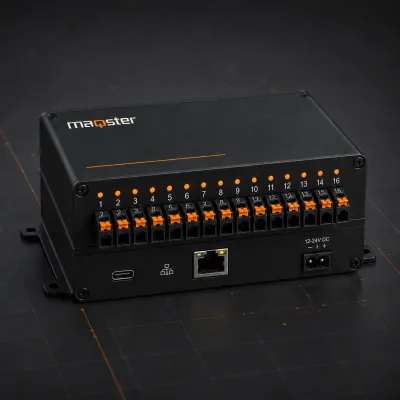
Input and output controller

16 configurable I/O channels for layout automation.

View product Coming soon

For museums and exhibitions

Visitor interaction starts with a clear signal

Example scenario

Beside a city model, visitors could use a button to choose a district. The control system highlights that area and starts a short story. At another station, detecting a visitor’s presence could start the show. Before implementation, the design defines what happens when several buttons are used together and when the station accepts another command.

What to prepare

Prepare a list of inputs, a description of their signals and a compatible controller. Sensors need checks of their supply voltage, output type, range and mounting position. Buttons need wiring and labels that match the visitor scenario. Testing in the intended location helps reveal unwanted triggers caused by passing visitors, reflections or changes in lighting.

Scope and limits

Not every sensor connects directly to an I/O input. Some need another interface or signal conditioning. A presence sensor used to start narration is not automatically a safety device for a moving mechanism. The show logic and the required protective measures are assessed separately.

Questions before implementation

What happens if a visitor presses the button several times?

That behaviour is part of the agreed scenario. Further presses during a show could be ignored, or a defined restart behaviour could be planned. It needs to be tested on the complete station.

Can an existing sensor be reused?

Its model, documentation and available signal need to be identified. The connection can only be determined after checking compatibility with the input. Detecting presence alone does not establish electrical compatibility or the method of reading the signal.

Explore control for museums and exhibitions or discuss your exhibition implementation. An implementation can be scoped and quoted now. The standalone Maqster app has not yet launched.

Enlarged view. On a small screen, scroll the diagram horizontally.

FREE · NEWSLETTER AND LAUNCH

We will let you know when
the app is ready

Sign up for the newsletter. After launch, we will email you a link to an account where you can download the app.

LET'S TALK ABOUT PRO

Your idea
PRO possibilities

Tell us about your model. We will help you choose the right application features and work out where to start.

  • Scenes and device control
  • Automation and integrations
  • A conversation about your project
maqsterLight. Motion. Sound.

We will reply to the email address you provide. Privacy policy.

Contact

Discuss control for your model

Tell us what you would like to do with your model layout. After a consultation, we will prepare a complete system tailored to your project.

  • Device and scene plan
  • Local control and configuration backups
  • Controllers, protocols and integrations